
Everything you need to master dream book 3D.
A visual quick-start guide to get you designing in minutes, followed by answers to the questions we hear most often.
From sign-in to your first Dream Render.
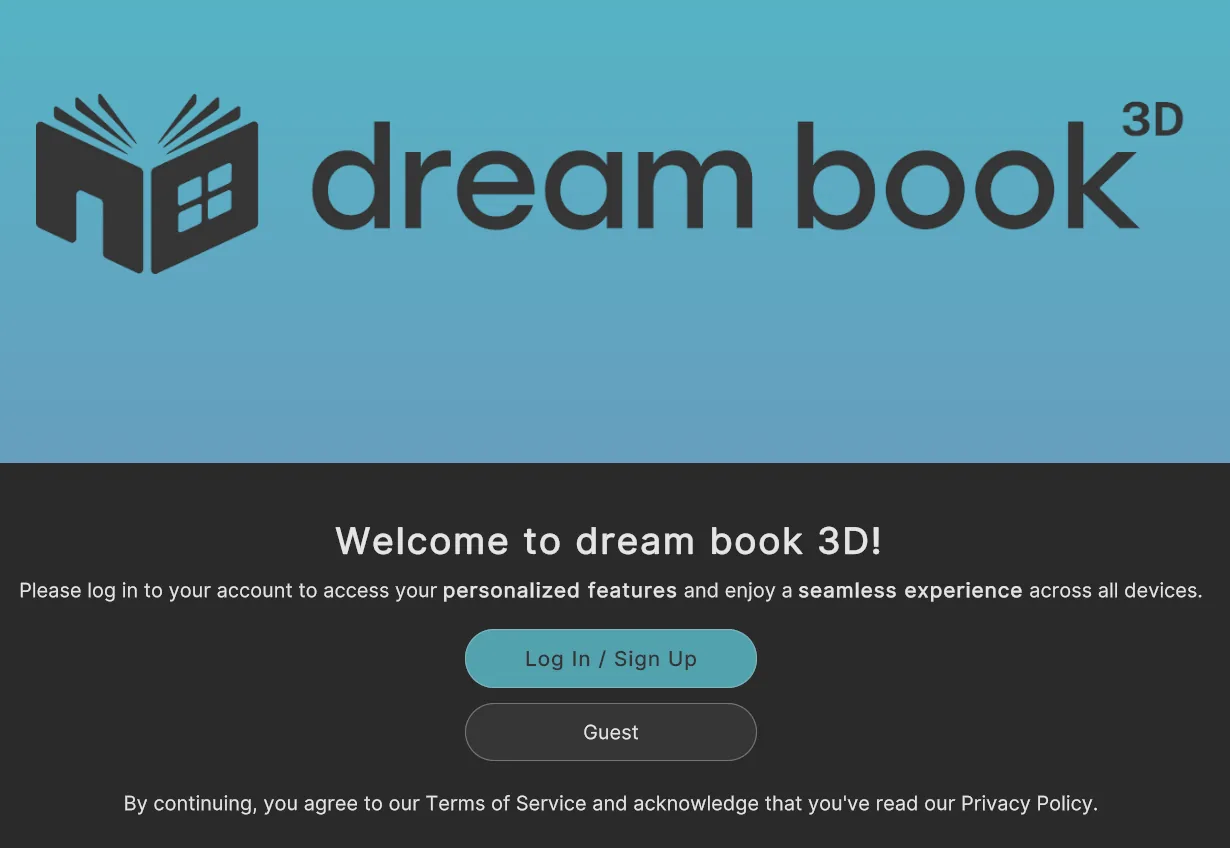
Open the app and sign in
Click Guest to start exploring for free. Signing up for a Free Account saves your designs and favorites to the cloud so you can open them on any device and share them with friends, family, or your builder.
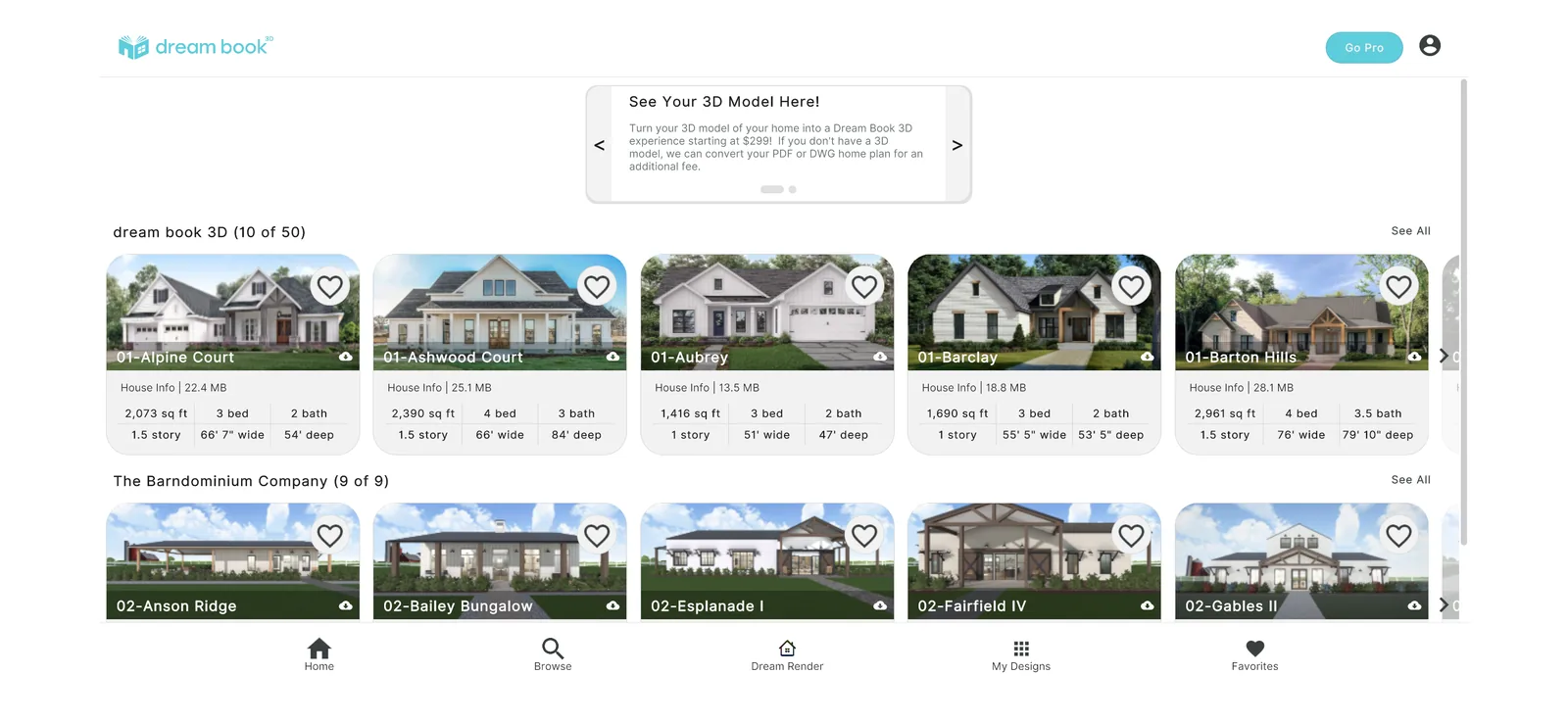
Pick a home plan from the Home Page
Choose from our library of real, buildable home plans to explore and design. Already have a 3D model? Upload it starting at $299. Have a 2D plan? See the 2D-to-3D conversion page Conversions start at $1,995–$2,995 for plans up to 3,500 sq ft.
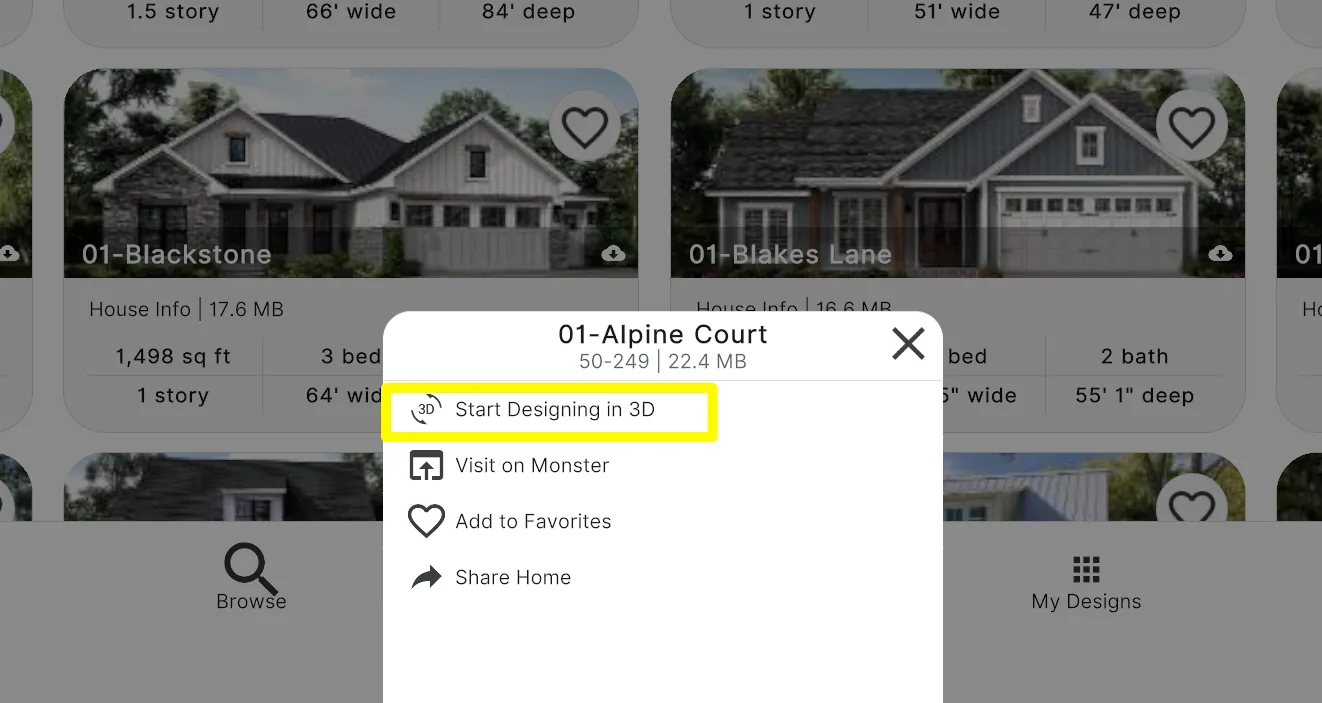
Enter the Design Screen
Tap a plan, then select "Start designing in 3D" from the pop-up menu at the bottom of the screen. Your plan loads into the Design Screen. Use the home icon at the upper left to return to the Home Page any time.
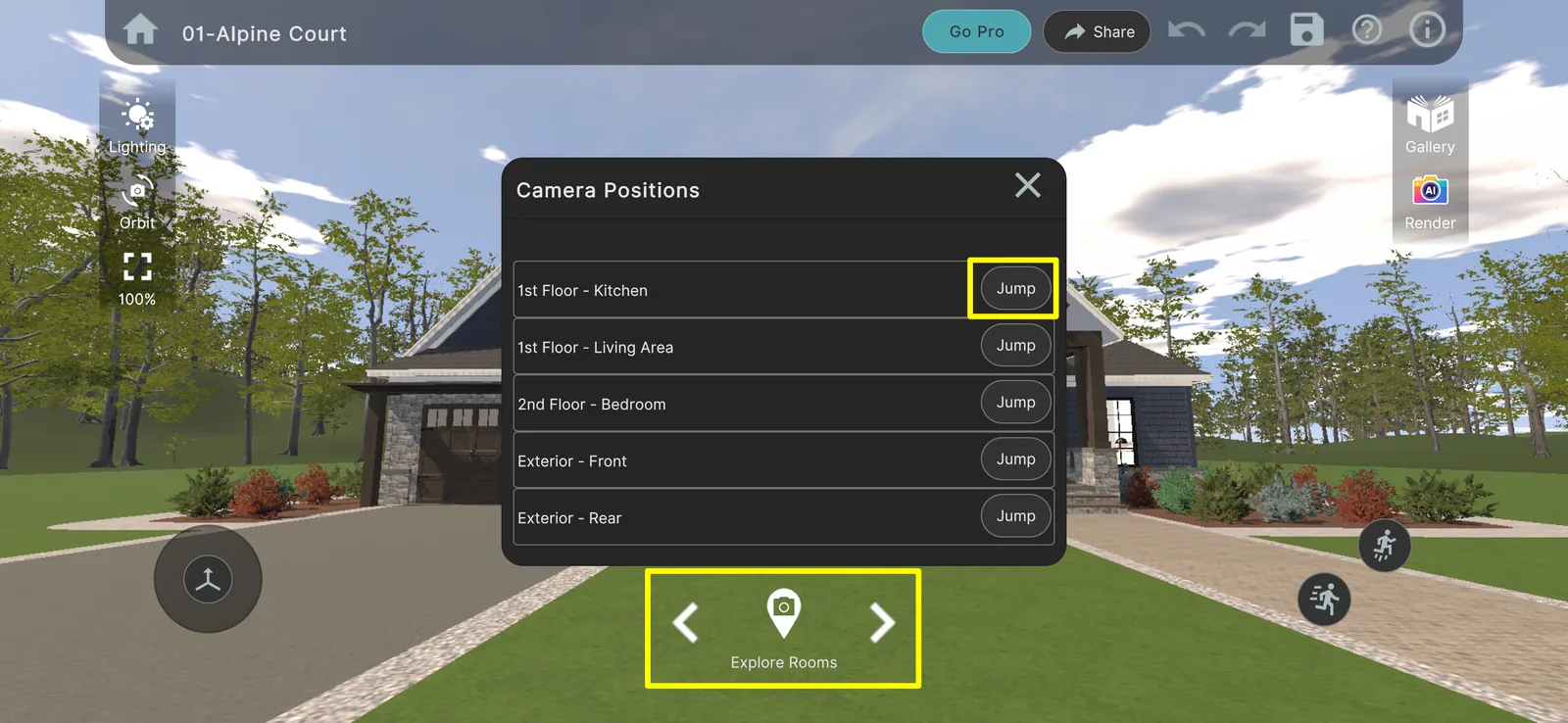
Jump between preset cameras
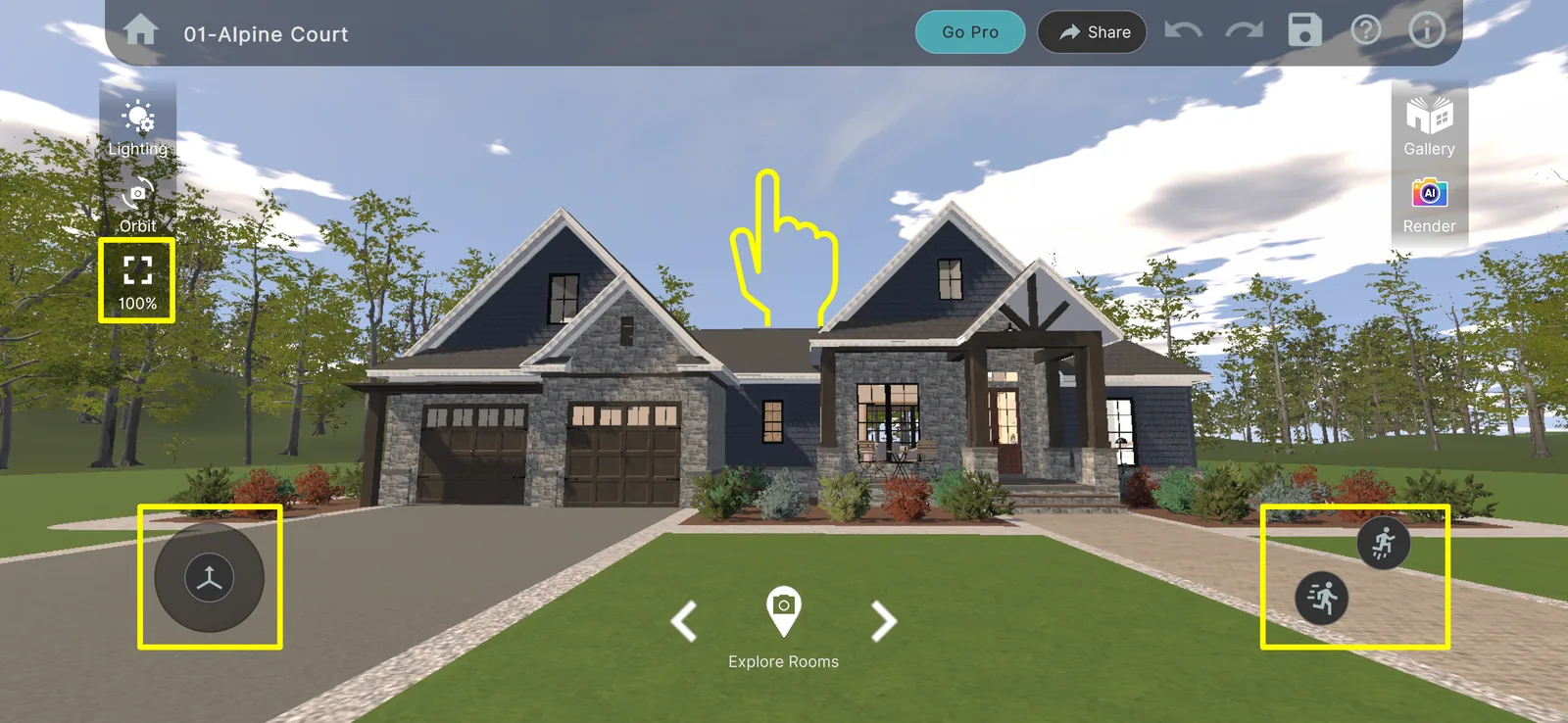
Click the camera icon at the bottom-middle of the screen to bring up a list of preset cameras within the home, then hit Jump to move to the selected view. Use the left/right arrows to take a guided tour of every camera.
Walk through on mobile
Push the joystick at the lower left in the direction you want to walk, and drag on the screen to change where you're looking. Pinch to zoom, and use the buttons at the lower right to walk faster or jump.
Walk through with keyboard + mouse
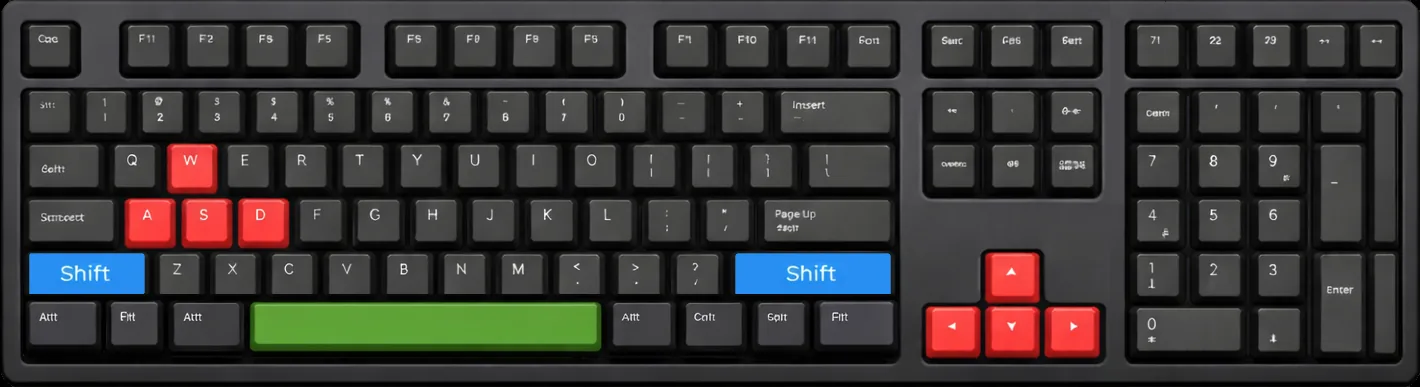
Use WASD or the arrow keys to walk, hold Shift to move faster, and tap Space to jump. Click and drag with the left mouse button to look around, and scroll to zoom in and out.
Change materials, textures, and colors
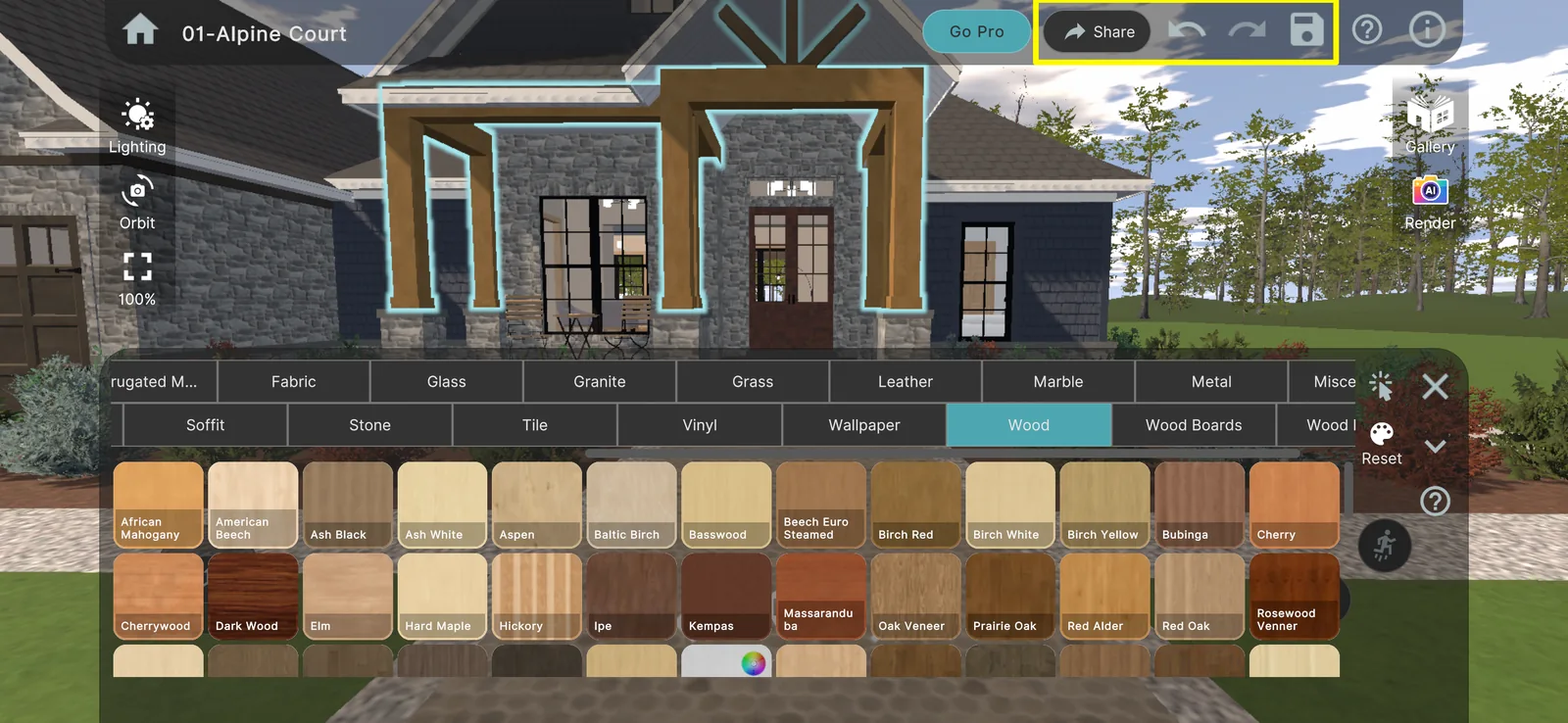
Click any surface to highlight it, then pick a material from the popup at the bottom of the screen. Materials with a color wheel unlock hundreds of color options with a Pro subscription. Use the top toolbar to Share, Undo, Redo, and Save.
Create a photorealistic Dream Render
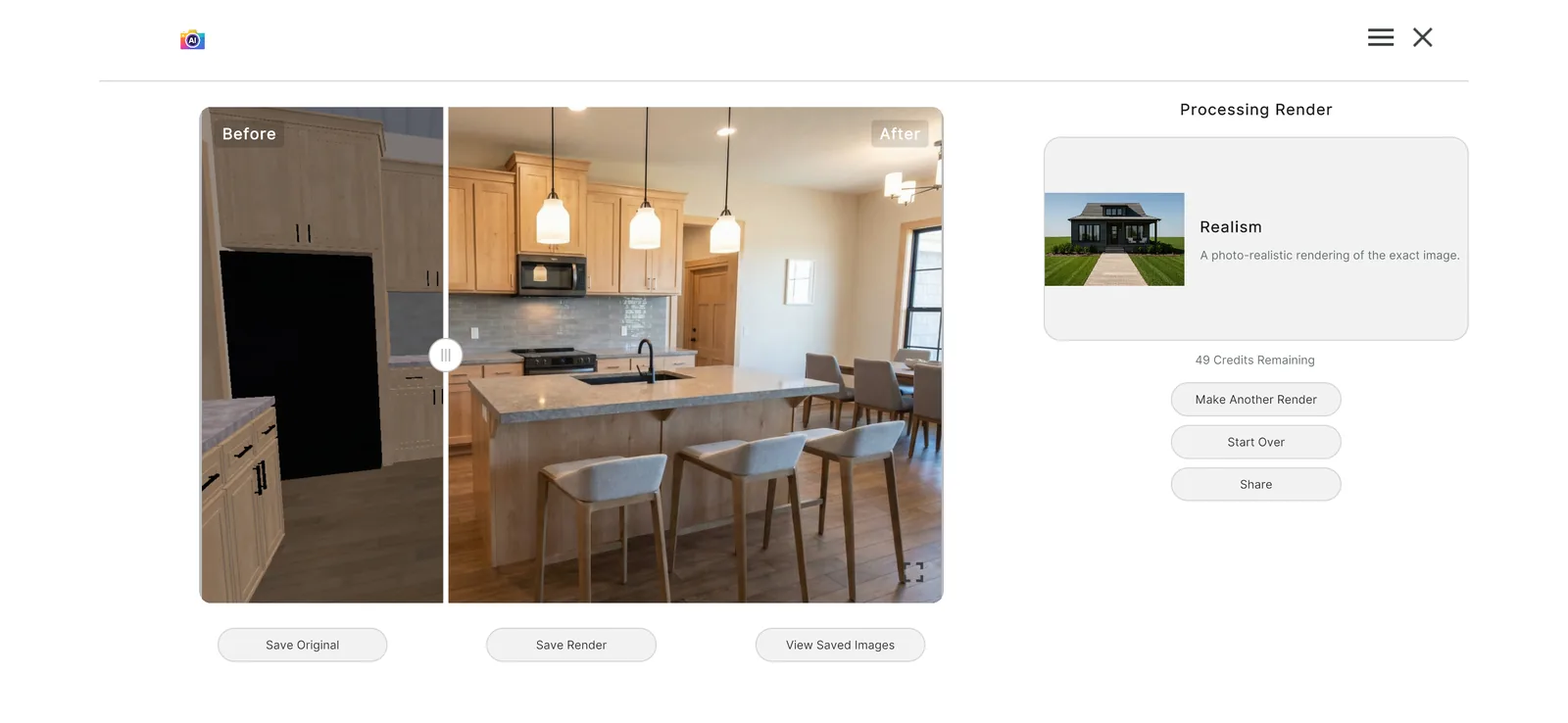
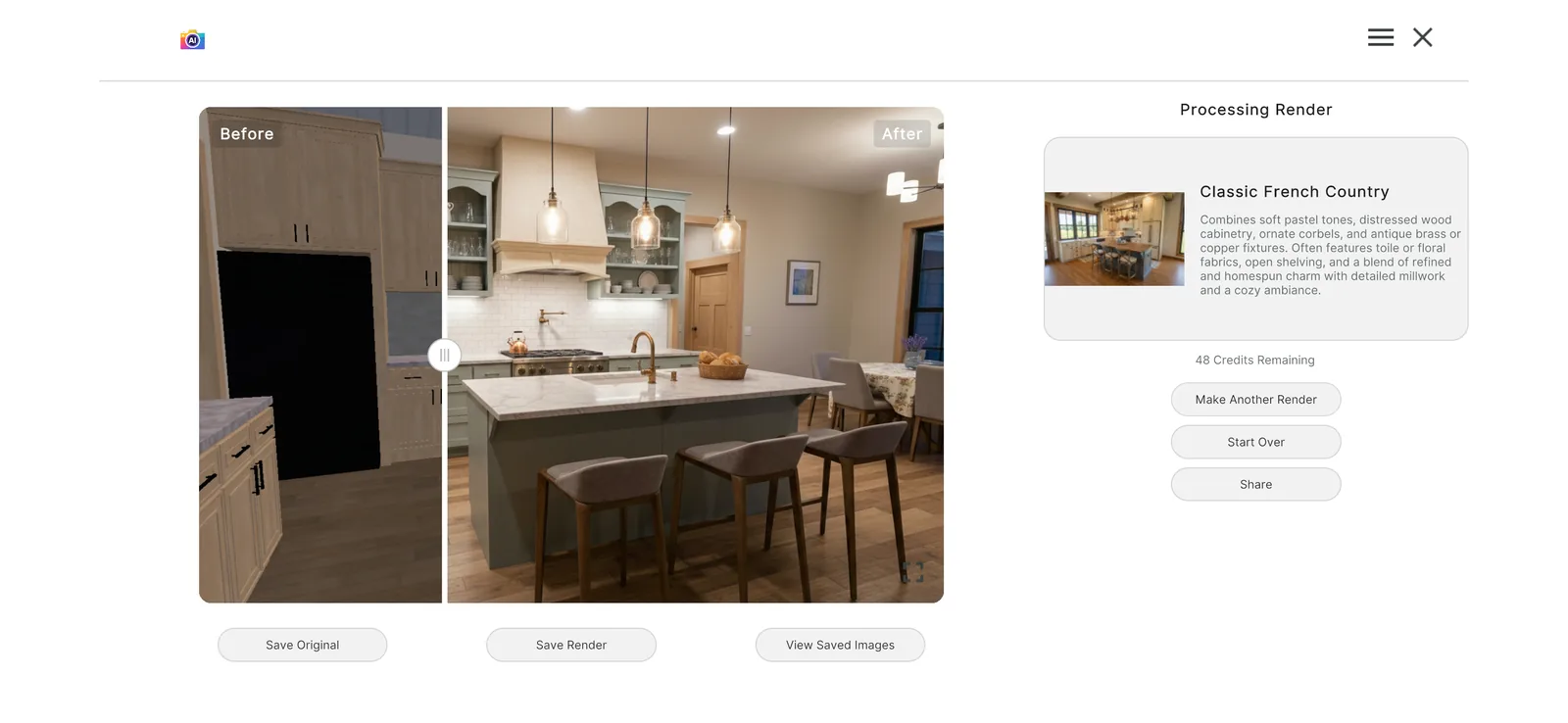
Click Render to generate a photorealistic image of your current view. A Realism Render reflects the exact materials and colors you've selected. Drag the slider to see the transformation from 3D model to reality.
Try 60+ styles instantly
A Styles Render applies one of 60+ popular styles to your home in a single click. You can even upload a photo of your existing home from the Dream Render icon on the Home Page and transform it into any style you like.
Light your home by zip code + time of day
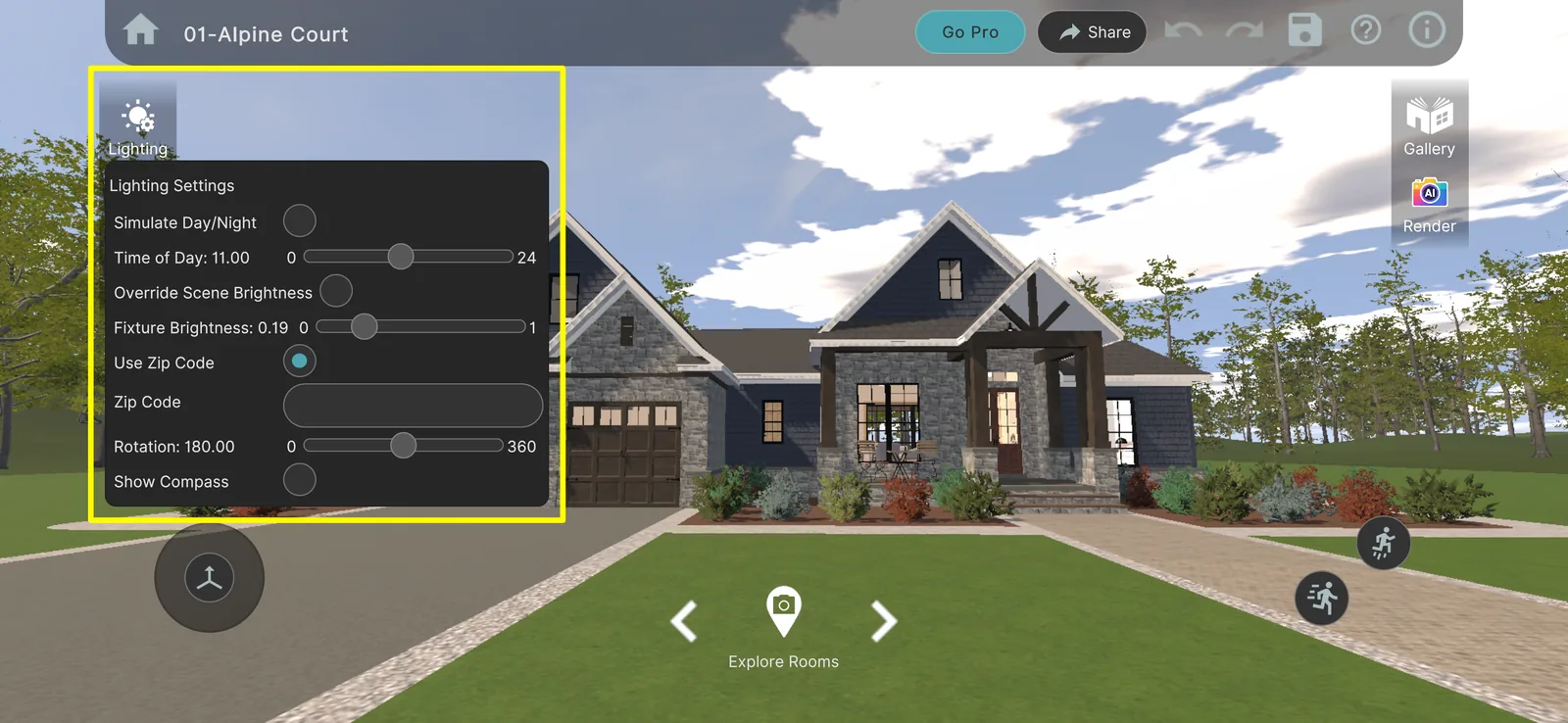
Use the Lighting menu to set your zip code and the direction your home faces, then drag the Time of Day slider to move the sun across the sky from dawn to dusk. See exactly how natural light interacts with your home on your lot.
Tune graphics + UI for your device
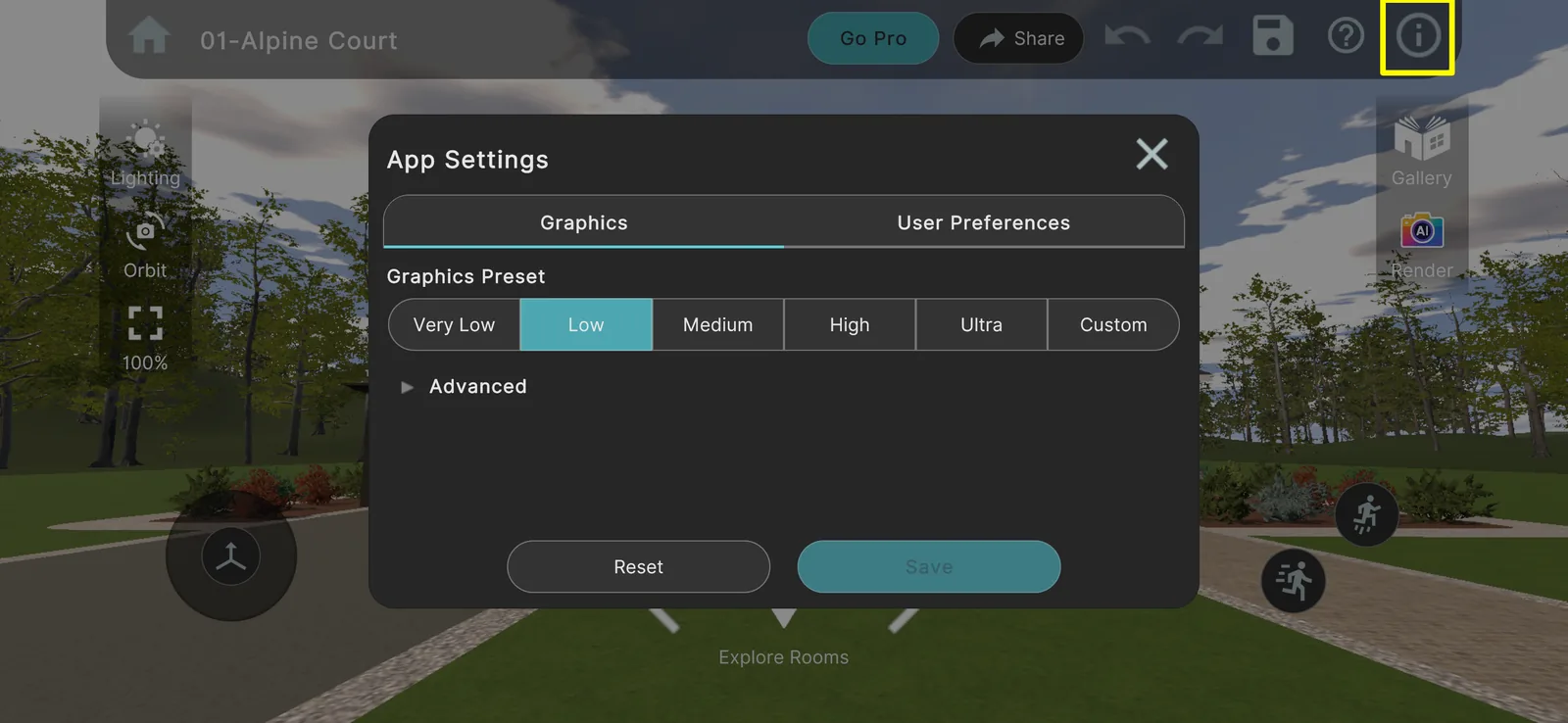
Open App Settings from the Info Menu (upper right on the Home or Design Screen). The Graphics tab controls detail and lighting. Most mobile devices run best on Low or Medium; powerful desktops can run High or Ultra. The User Preferences tab tunes mouse sensitivity and UI scale.
Answers to the questions we hear most.
Getting Started
Plans, Credits & Pricing
Getting Your Plan Into the App
Sharing, Collaboration & Rendering
Talk with the dream book 3D team.
Support hours are Mon–Fri, 9:00am–6:00pm EST (excluding holidays). We'll help you pick the right plan, size a conversion, or walk through a live demo.